Doteasy Tutorials - FTP
FTP a software that is commonly used to transfer files from one computer to another. In this case you will be transferring files from your computer to the Doteasy web server. This tutorial explains to you how to use CuteFTP software on Windows to upload files to your server. To follow this tutorial you will need to have your Doteasy Member ID and password, a copy of CuteFTP installed on your computer and an internet connection.
I. Doteasy Basic Hosting FTP Tutorial.
 Start the CuteFTP software and you will see the screen below. Click on the "NEW" button. This will give you a blank screen to setup and use as your connection to your site. Start the CuteFTP software and you will see the screen below. Click on the "NEW" button. This will give you a blank screen to setup and use as your connection to your site. |
|
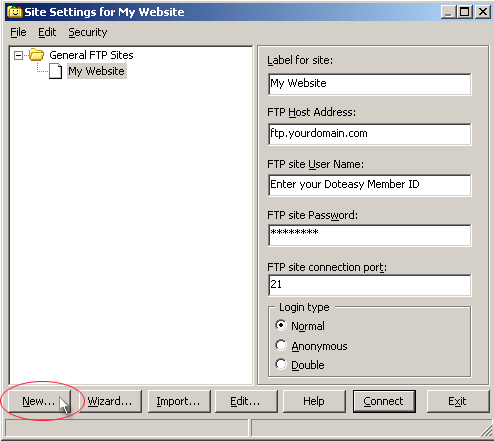 |
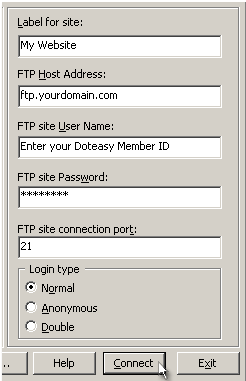
 Fill in the blanks as follows: Fill in the blanks as follows:
| Label for site: |
| Your website name |
|
| FTP Host Address: |
| ftp.yourdomain.com |
| (substitute yourdomain.com with your domain) |
|
| FTP site User Name: |
| Enter your Doteasy Member ID |
| (member ID only NOT administrative email address) |
|
| FTP site Password: |
| Enter your Doteasy Member password |
| (passwords and IDs are case sensitive) |
|
| Login type: |
| Normal |
|
|
|
|
|
Then click Connect. Define a label (name) for the site and the program will save the settings so you don't have to enter this information again.
 |
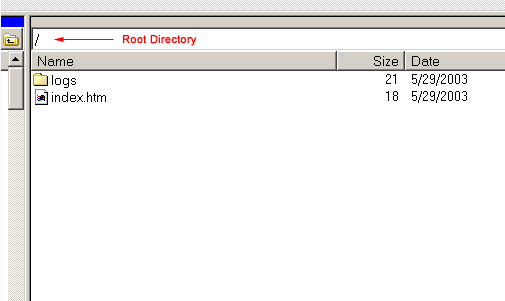
 Once you are connected to the server you will see the following file(s) and folder(s) as shown below. Once you are connected to the server you will see the following file(s) and folder(s) as shown below.
 |
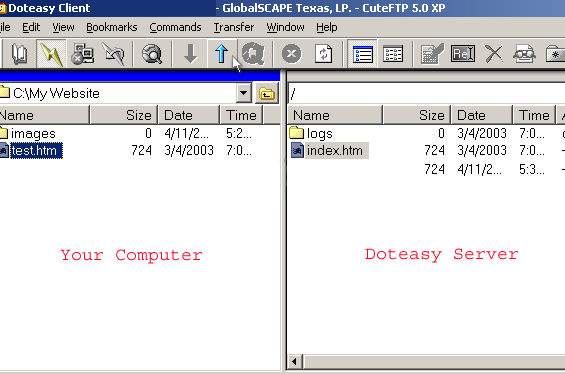
 To transfer files: Select the file on your computer and click the arrow button to transfer the file over to the Doteasy Server. You should overwrite the files on the remote system if you are making changes to your website. It should take several seconds to transfer your files depending on your internet connection speed. After you have finished uploading all of the necessary files, you may exit the program and view your changes through a web browser. To transfer files: Select the file on your computer and click the arrow button to transfer the file over to the Doteasy Server. You should overwrite the files on the remote system if you are making changes to your website. It should take several seconds to transfer your files depending on your internet connection speed. After you have finished uploading all of the necessary files, you may exit the program and view your changes through a web browser.
You can start uploading your files already. You should place all of your web pages, files and necessary subdirectories inside the "root" directory on the remote system.
You can create subdirectories by clicking on Make new directory on the right hand side and name the directory.
Your website initial page should be named index.htm to be displayed correctly. All filenames and directories are case sensitive.
|
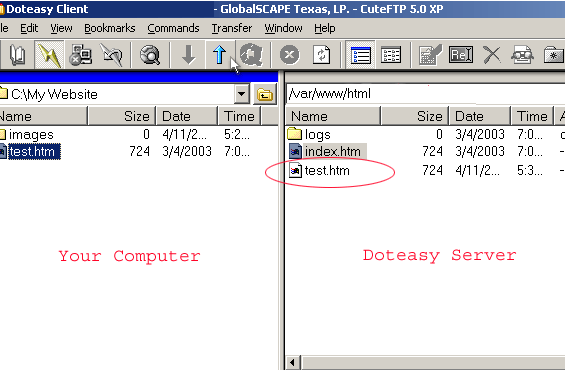
 The uploaded file will appear on the Doteasy Server. The uploaded file will appear on the Doteasy Server.
* If changes are not visible after you have uploaded new content to your website, please try clearing your browser cache or temporary internet files and reload the page again.
|
II. Unlimited Hosting FTP Tutorial.
| Start the CuteFTP software and you will see the screen below. Click on the "NEW" button. This will give you a blank screen to setup and use as your connection to your site. |
|
|
Fill in the blanks as follows:
| Label for site: |
| Your website name |
|
| FTP Host Address: |
| ftp.yourdomain.com |
| (substitute yourdomain.com with your domain) |
|
| FTP site User Name: |
| Enter your Doteasy Member ID |
| (member ID only NOT administrative email address) |
|
| FTP site Password: |
| Enter your Doteasy Member password |
| (passwords and IDs are case sensitive) |
|
| Login type: |
| Normal |
|
|
|
|
|
Then click Connect. Define a label (name) for the site and the program will save the settings so you don't have to enter this information again.
|
Once you are connected to the server you will see the following folder shortcuts as shown below.
Double-click on 'mainwebsite_html" to reach your html root location (/var/www/html).
Note: When uploading your web content:
1) All HTML files or page content(images, audio, video, etc...) MUST be uploaded to the mainwebsite_html directory.
2) All CGI files MUST be uploaded to the mainwebsite_cgi directory, you will need to open the folder then proceed to upload your files to that folder.
3) All Perl files MUST be uploaded to the mainwebsite_perl directory.
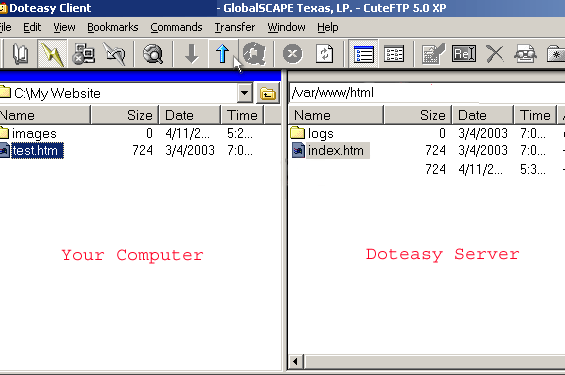 |
To transfer files: Select the file on your computer and click the up arrow button to transfer the file over to the Doteasy Server. You should overwrite the files on the remote system if you are making changes to your website. It should take several seconds to transfer your files depending on your internet connection speed. After you have finished uploading all of the necessary files, you may exit the program and view your changes through a web browser.
You can start uploading your files already. You should place all of your web pages, files and necessary subdirectories inside the "/var/www/html" directory on the remote system.
You can create subdirectories by clicking on Make new directory on the right hand side and name the directory.
Your website initial page should be named index.htm to be displayed correctly. All filenames and directories are case sensitive.
|
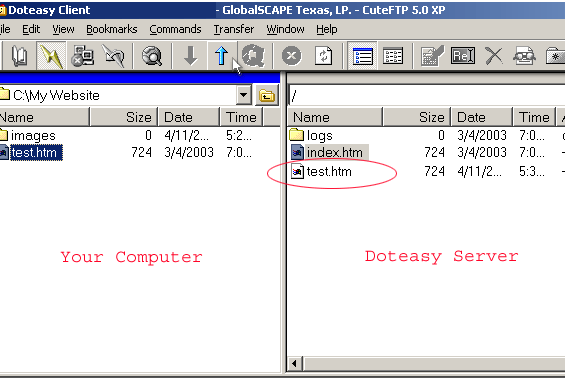
The uploaded file will appear on the Doteasy Server window.
* If changes are not visible after you have uploaded new content to your website, please try clearing your browser cache or temporary internet files and reload the page again.
|
If you require additional assistance, please feel free to contact us: http://www.doteasy.com/support/