- Doteasy Web Hosting
-
Web Hosting
Shared Web Hosting
Classic web hosting for incredible websites. Explore unlimited websites, domain emails, cPanel, fast SSD + moreFrom $3.75/moBusiness Web Hosting
Your business website’s power-packed home. Dedicated IP, unlimited bandwidth, unlimited emails, fast SSD & secure SSLFrom $15.95/moManaged WordPress Hosting
Fast, secure & hassle-free hosting for WordPress websitesFrom $3.75/moCloud Hosting
Fully managed cloud hosting for power users. Enjoy dedicated resources, unlimited MySQL, unlimited emailsFrom $56.00/mo -
WordPress Hosting
Managed WordPress Hosting
WordPress pre-installed, auto-updates & optimal WordPress hosting requirementsFrom $3.75/moWordPress Hosting Tutorials
Wordpress Beginner's Guide, and free WordPress themes & plugins recommended dailyWordPress Video Guides
Discover Wordpress setup tutorials and more WordPress hosting how-to videos -
Websites
Website Builder
Create your website in minutes with a drag & drop site builder, website templates & free stock imagesFree with all hosting plansOnline Store
Sell online in minutes using the drag and drop online store builderFree with all Business Hosting PlansWeb Design Service
Our website experts take care of your website with affordable web design & marketing solutionsGet a free consultation! -
Security & SSL
Domain Name Privacy Protection
Hide your personal information from spammers, hackers and attackers.FREE with new domain purchasesEmail Protection
Experience secure email. Protect against unwanted spam, viruses and malware$6.95/mo introductory pricingAuto Site Backup
Protect your website from lost data or downtime with convenient and secure site backups$1.50/mo introductory pricingSSL Certificates
Meet security standards and increase visitor trust with secure SSLFREE with all hosting plans
-
-
Web HostingShared Web HostingClassic web hosting for fast & secure websitesFrom $3.75/mo Business Web HostingGrow your business website with high performance web hostingFrom $15.95/mo WordPress HostingFast, secure & hassle-free WordPress hosting requirementsFrom $3.75/mo
Cloud Hosting
Fully managed cloud hosting for power users. Enjoy dedicated resources, unlimited MySQL, unlimited emailsFrom $56.00/mo -
Websites
Website Builder
Create your website in minutes with a drag & drop site builder, website templates & free stock imagesFree with all hosting plansOnline Store
Sell online in minutes using the drag and drop online store builderFree with all Business Hosting PlansWeb Design Service
Our website experts take care of your website with affordable web design & marketing solutionsGet a free consultation! -
Security & SSL
Domain Name Privacy Protection
Hide your personal information from spammers, hackers and attackers.FREE with new domain purchasesEmail Protection
Experience secure email. Protect against unwanted spam, viruses and malware$6.95/mo introductory pricingAuto Site Backup
Protect your website from lost data or downtime with convenient and secure site backups$1.50/mo introductory pricingSSL Certificates
Meet security standards and increase visitor trust with secure SSLFREE with all hosting plans

 Start your Netscape software. Click 'Edit' and select 'Mail & Newsgroups Account Settings...'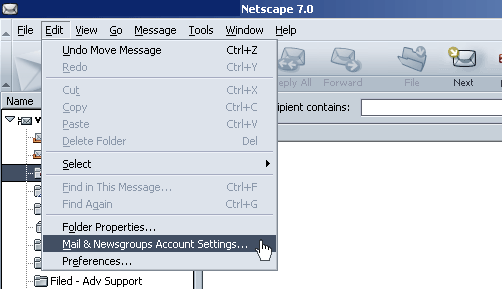
 On the Mail & Newsgroups Account Settings page, click 'Add Account...'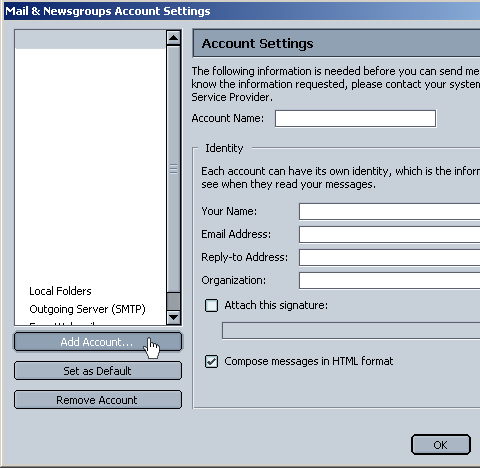
 On the New Account Setup page, select 'Email account' and click 'Next'.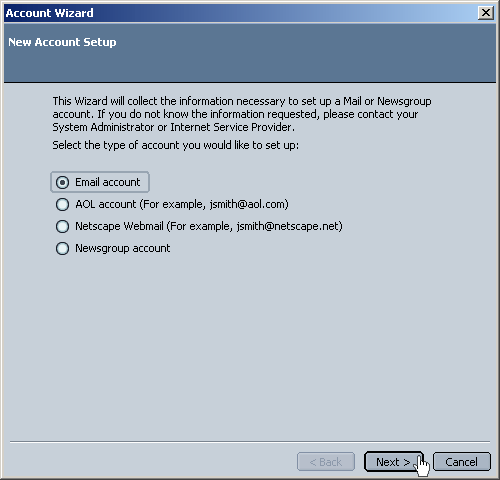
 On the Identity page, enter the email sender's name as 'Your Name:' and the email sender's email address as 'Email Address:' and click 'Next'.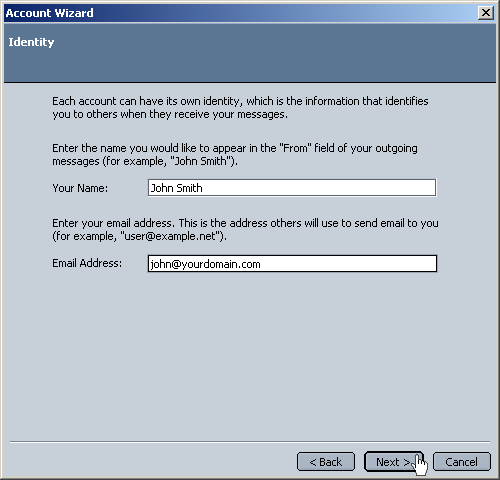
 On the Server Information page, select 'POP' as the incoming server type and enter mail.yourdomain.com as the 'Incoming Server:' and click 'Next'.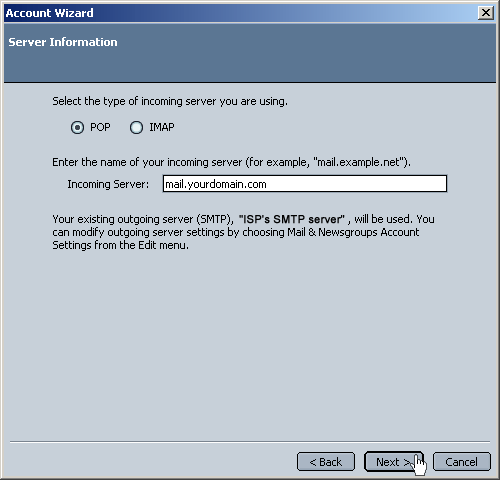
 On the User Name page, enter userID@yourdomain.com as the 'User Name' and click 'Next'.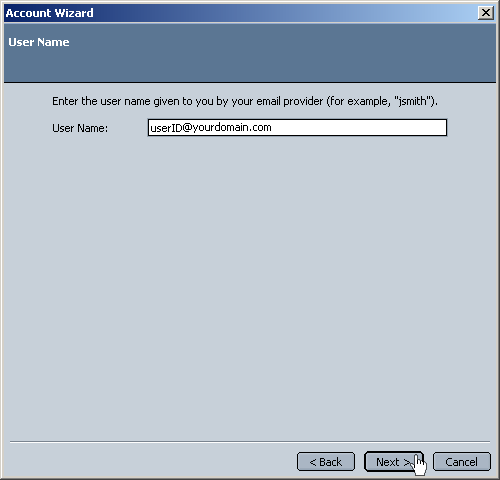
 On the Account Name page enter a name for this email account profile within Netscape and click 'Next'.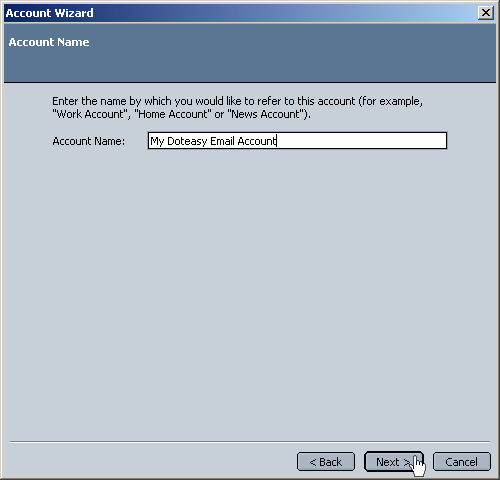
 Congratulations! You have almost successfully setup your POP email software. Click Finish to end the Account Wizard.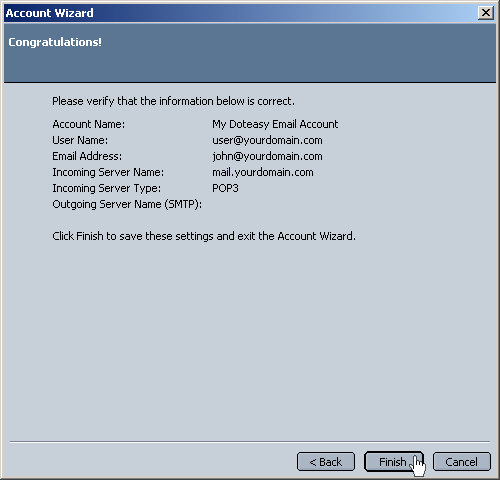
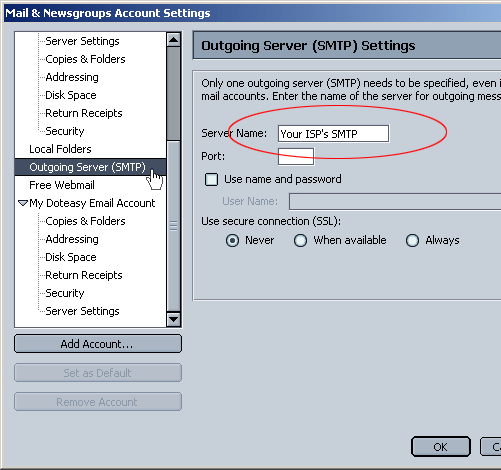
 On the Mail & Newsgroups Account Settings page, select 'Outgoing Server (SMTP) and enter the SMTP server provided by your ISP as your SMTP server name and click 'Ok'.